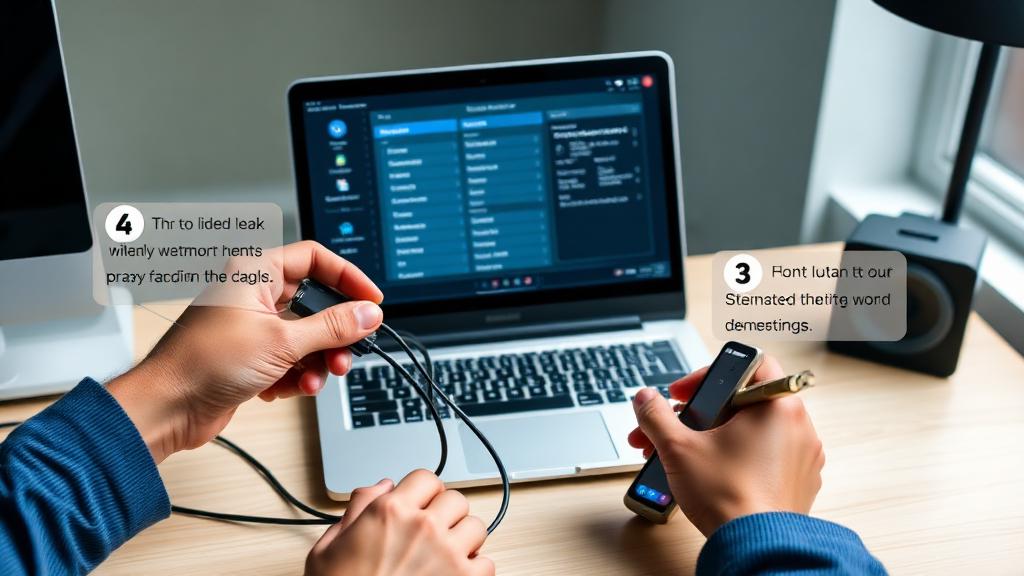
How to Set Up an AI Answering Service: Complete Step-by-Step Guide (2026)
Before You Start
- Gather these before you begin:
- Your business phone number
- Business hours
- Common caller questions (top 10)
- Scheduling preferences
- Integration credentials (CRM, calendar)
- Emergency escalation contacts
Having these ready cuts setup time in half.
Step 1: Choose Your Service (30 Minutes)
- Decision framework by business type:
- General small business → Upfirst ($25/mo)
- Home services → Rosie ($49/mo)
- Restaurant → Loman AI ($99/mo)
- Salon/spa → TrueLark ($199/mo)
- Law firm → Smith.ai ($97.50/mo)
- Vet clinic → PupPilot ($59/mo)
Most services offer free trials — use them before committing.
Step 2: Write Your Scripts (15–30 Minutes)
Keep greetings under 15 seconds: 'Thank you for calling [Business Name]. How can I help you today?'
Map the 5–10 most common call reasons: appointment scheduling, pricing inquiries, emergency/urgent calls, after-hours calls, general information.
Build a FAQ knowledge base with your top questions and specific answers.
Step 3: Set Up Phone Forwarding (5–10 Minutes)
Option A: Forward all calls (24/7 AI coverage) Option B: Forward when busy/unanswered (hybrid human + AI) Option C: VoIP/cloud phone system routing Option D: Schedule-based forwarding (after-hours only)
Most businesses start with after-hours-only forwarding.
Step 4: Connect Integrations (10–15 Minutes)
Calendar (Google Calendar, Calendly), CRM (HubSpot, Salesforce via Zapier), and industry-specific tools (Housecall Pro, Clio, Toast).
Step 5: Test and Launch (10–15 Minutes)
Testing checklist: ✓ Basic greeting works ✓ Scheduling works ✓ FAQ answers accurate ✓ Emergency escalation triggers correctly ✓ After-hours behavior correct ✓ SMS notifications received ✓ CRM logging works
Go live! Monitor closely for the first 48 hours.
Related Articles
AI Answering Service ROI Calculator: What Missed Calls Actually Cost You (2026)
62% of calls to small businesses go unanswered. 80% of callers who reach voicemail won't leave a message. Calculate what missed calls cost YOUR business.
How JENA's AI Coach and Receptionist Are Empowering Solo Beauty and Wellness Professionals
Discover how JENA's AI-powered tools help independent beauty and wellness professionals automate bookings, handle client enquiries, and grow their businesses.

How to Train Your AI Receptionist (Get 95%+ Accuracy)
Your AI receptionist is only as good as its training. This guide shows how to achieve 95%+ call handling accuracy through proper setup and optimization.